
If you’ve noticed my colorful scrollbar and thought you might like one, too, this article is for you.
TLDR: This is the breakdown of the codes, but if you just want a tool to do it for you, here are a few.
One thing to take note of in regards to custom scrollbars is that not all browsers are created equal. Most newer browsers support them and most people should have newer browsers, but Firefox needs to be different and requires a separate, different code. It’s up to you to decide if you care about the <4% of people who are still using Firefox.

Most people are using Chrome these days and the 2% of us using Opera are in luck because it runs on Chromium, so if it works in Chrome it’ll work in Opera. Edge and Safari are also supporting the -webkit-scrollbar styles, so that will be the bulk of the code.
Firefox
Since it’s so simple, let’s go ahead and get Firefox out of the way.
/* Firefox */
* {
    scrollbar-width: auto;
    scrollbar-color: #44a9ca #f6efef;
}
Looking at this code we have scrollbar-width and scrollbar-color. This is really the only thing Firefox lets you decide.
scrollbar-width: Your options for this are none, thin, or auto. I recommend always going with auto because you want the scrollbar to be there and be useable.
scrollbar-color: In this value you will put the color of the bar itself, then the color of the bar’s track, in that order.
You’ll want to add this code to your CSS in addition to the below code, which works in all of the other browsers.
Chrome, Edge, Safari, Opera
I put those browsers in the order of popularity, but honestly if you’re not using Opera at this point you should definitely check it out and all its great features. Anyway..
The base code of this colorful scrollbar includes the track and the bar itself. This is all I’m really using right now and it looks pretty nice.
/* Chrome, Edge, and Safari */

::-webkit-scrollbar {
    width: 15px;
    height: 15px;
}

::-webkit-scrollbar-track {
    background-color: #f6efef;
    border-radius: 5px;
    margin-top: 3px;
    margin-bottom: 3px;
    box-shadow: inset 0 0 6px rgba(0, 0, 0, 0.3);
}

::-webkit-scrollbar-thumb {
    border-radius: 5px;
    background-color: #42cdd7;
    background-image: -webkit-linear-gradient(
        45deg,
        rgba(255, 255, 255, 0.2) 25%,
        transparent 25%,
        transparent 50%,
        rgba(255, 255, 255, 0.2) 50%,
        rgba(255, 255, 255, 0.2) 75%,
        transparent 75%,
        transparent
    );
}

::-webkit-scrollbar-thumb:hover {
    background-color: #44a2ca;
}
::-webkit-scrollbar: This value allows you to choose the height and width of the scrollbar. The height is for horizontal scrolling and the width is for vertical scrolling. You probably won’t see the horizontal bar ever, but it’s still a good idea to define it.
::-webkit-scrollbar-track: This is the color of your track, or the bottom part of the scrollbar. On most browsers this is usually dark grey. You can make this either a solid color or a gradient. You can add a shadow or a border if you want.
::-webkit-scrollbar-thumb: The actual bar itself can also be designed with a shadow, a border, and a gradient. Mine features a gradient.
::-webkit-scrollbar-thumb:hover: If you want the color to be responsive on hover you can make your changes here. If you only define the color, the gradient will remain but with the new color as its base.
What About The Arrows?
I don’t personally use the arrows in my scrollbar, but it is possible. Unfortunately, it takes some extra coding that the WordPress “Additional CSS” section won’t accept so I’ve chosen to leave it out. If you want to try adding the arrows, check out this Ultimate Guide (which is where I originally got my scrollbar).
Adding It To WordPress
Adding a custom scrollbar in WordPress is slightly different than an HTML site because we use themes and those themes don’t always give us many customization options, especially if you’re using a free theme.
Customizer: Additional CSS
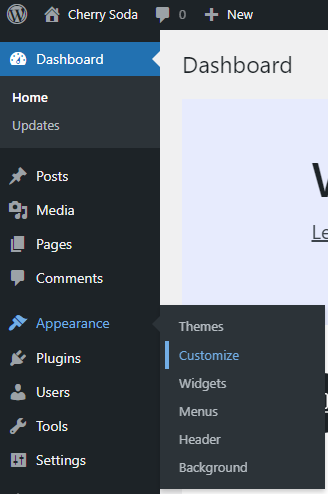
If you’re lucky, your theme includes the Additional CSS option inside the customizer and you can just paste the code into there. You can find this in most WordPress themes under Appearance > Customize.
If your theme doesn’t have the Customizer option, you may still be able to access the customizer by adding customizer.php into the browser address bar.
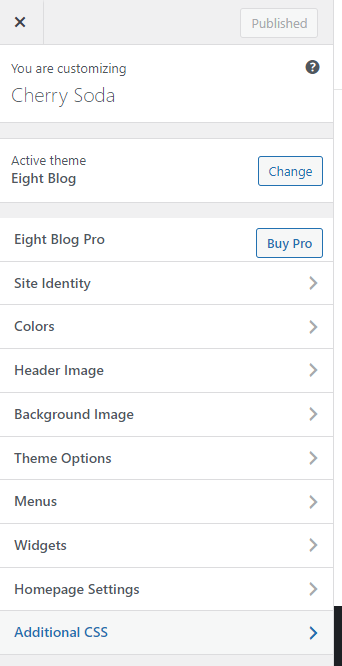
Once you’re in the Customizer there should be an option at the bottom for Additional CSS, simply paste the code there and Publish.
Using A Plugin
If you don’t have the Additional CSS option in your customizer, you might need to resort to using a plugin. In this case you can choose to use a plugin like Code Snippets, that allows you to add code to your site without editing your theme files (which you want to avoid at all costs, as they can get overwritten with updates). There is also a plugin for adding custom CSS to blocks, in case you only want to add the custom scrollbar to a specific block.
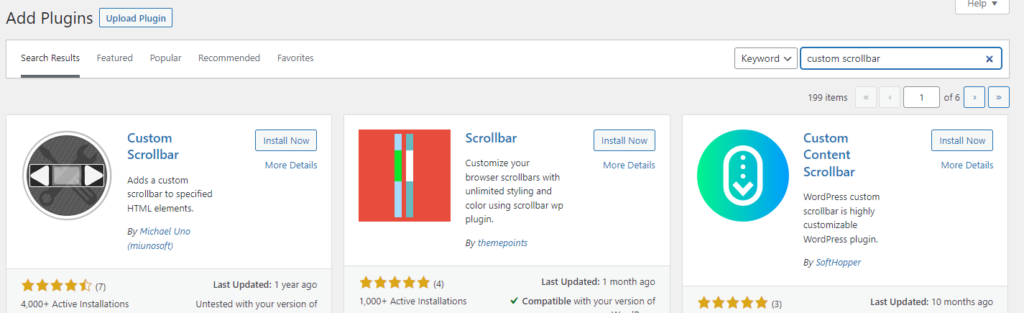
And of course, if you just really hate code, you can install a plugin that will colorize the scrollbar for you. I don’t use any of these plugins because I prefer not to add unnecessary bloat to my site, but I see there are a few available on the plugin repository.
Adding It To HTML Sites
On an HTML site you’ll add these codes either inside if your CSS file as-is, or between the <style></style> tags in your header. With the whole code together, it should look like:
<style>
/* Start Custom Scrollbar */

/* Firefox */
* {
    scrollbar-width: auto;
    scrollbar-color: #44a9ca #f6efef;
}

/* Chrome, Edge, and Safari */

::-webkit-scrollbar {
    width: 15px;
    height: 15px;
}

::-webkit-scrollbar-track {
    background-color: #f6efef;
    border-radius: 5px;
    margin-top: 3px;
    margin-bottom: 3px;
    box-shadow: inset 0 0 6px rgba(0, 0, 0, 0.3);
}

::-webkit-scrollbar-thumb {
    border-radius: 5px;
    background-color: #42cdd7;
    background-image: -webkit-linear-gradient(
        45deg,
        rgba(255, 255, 255, 0.2) 25%,
        transparent 25%,
        transparent 50%,
        rgba(255, 255, 255, 0.2) 50%,
        rgba(255, 255, 255, 0.2) 75%,
        transparent 75%,
        transparent
    );
}

::-webkit-scrollbar-thumb:hover {
    background-color: #44a2ca;
}
/* End Custom Scrollbar */
</style>
I hope this article was helpful & if you have a custom scrollbar please comment below, I’d love to come check it out!